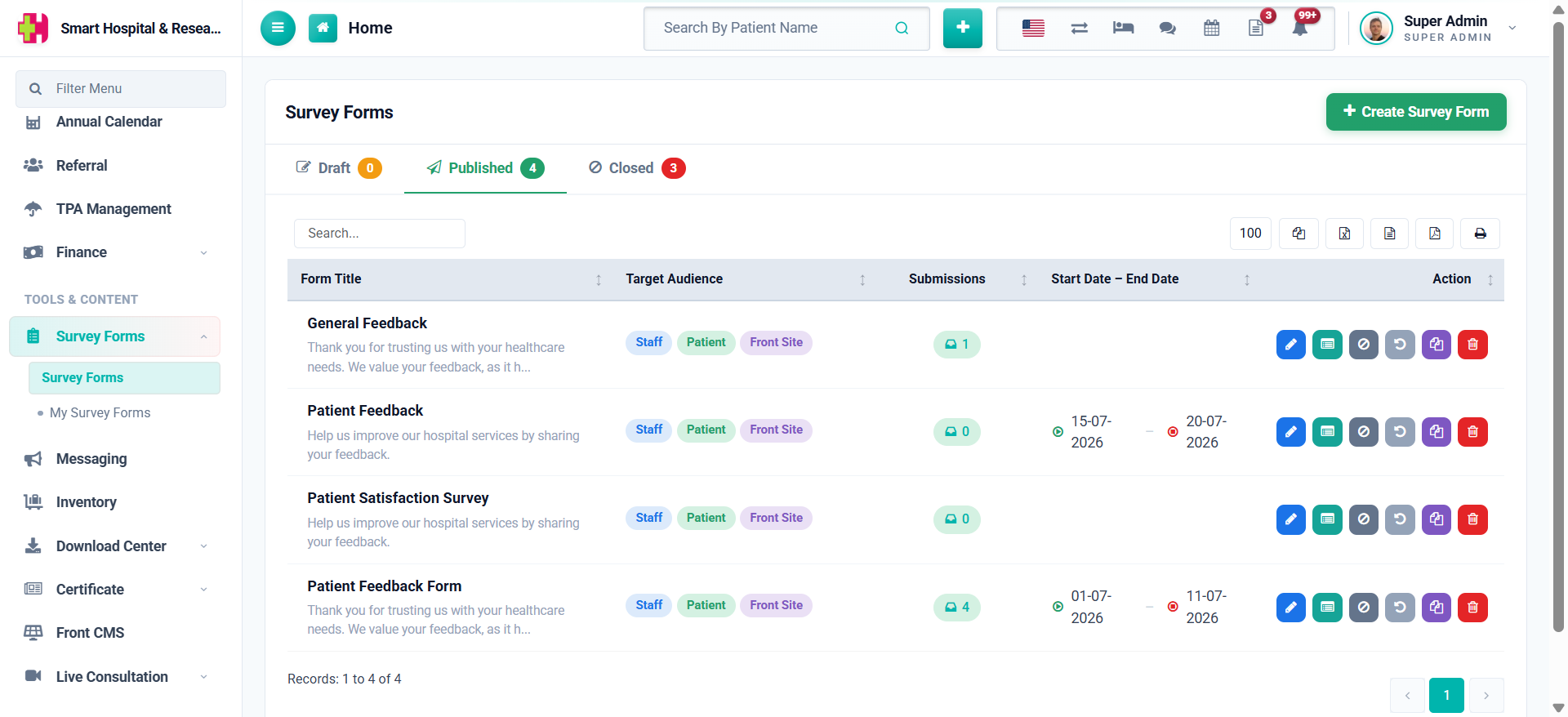
Go to Survey Forms → Survey Forms from the sidebar and click on the + Create Survey Form button on the top right of the list page.
Under Schedule, you can optionally set a Start Date and End Date so the form is only open for a limited period. Under Target Audience, select at least one of Staff, Patient or Front Site — this decides who will see the form once it is published.
Two more settings are available under Settings:
- Allow Edit Response — lets a user who already submitted the form resubmit it, overwriting their previous answers.
- Enable CAPTCHA — adds a security code verification step on public form submissions.
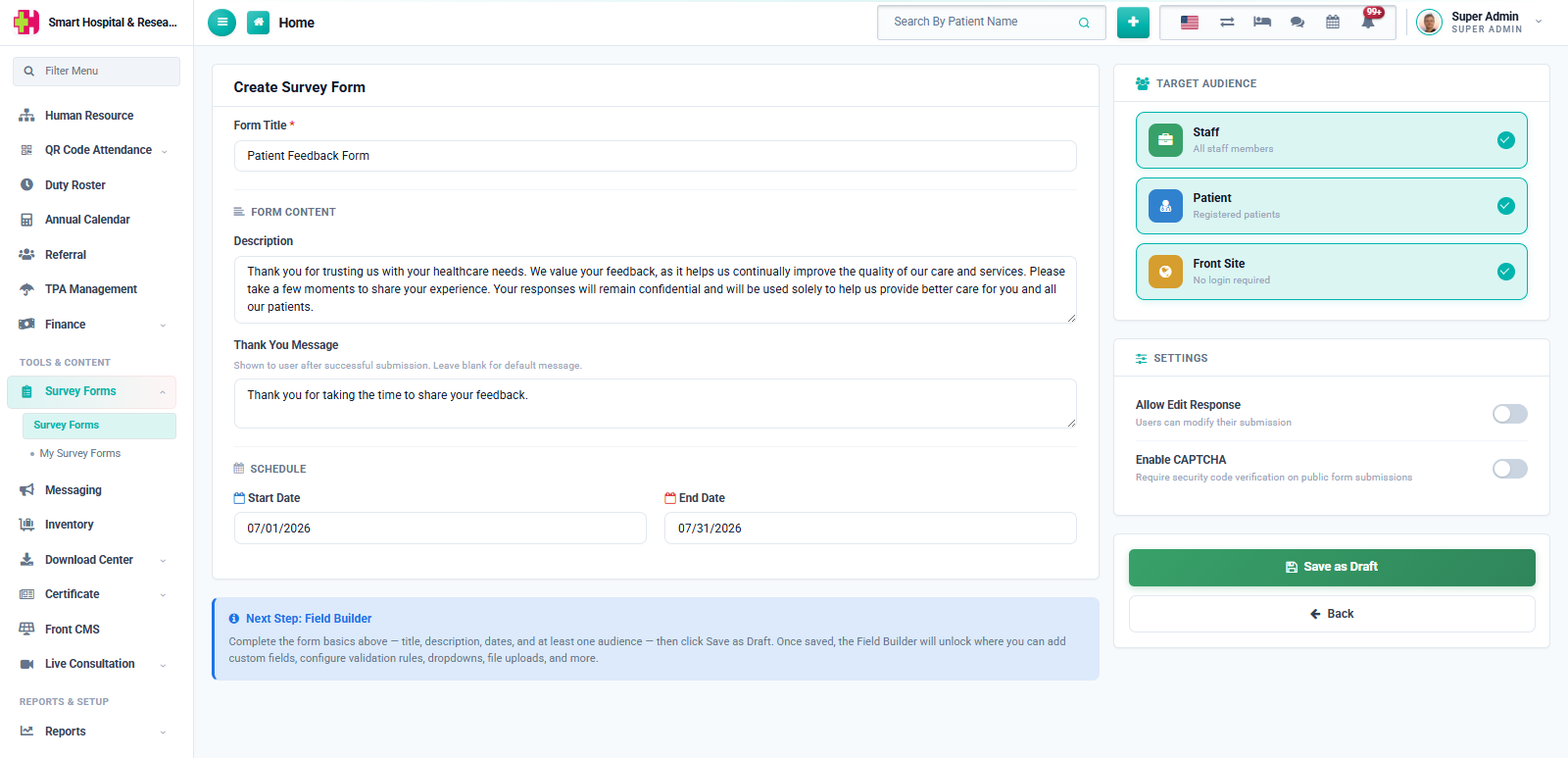
Click Save as Draft once you are done. The form is created in Draft status and you are taken straight to the Edit page, where the Survey Builder unlocks so you can start adding fields.
Note: a form needs at least one Target Audience selected, and at least one field added, before it can be Published.